

kong setup command is an interactive wizard that configures your LLM providers and verifies your environment. You only need to run it once, but you can re-run it anytime to change your configuration.
Step 1: Choose Your Providers
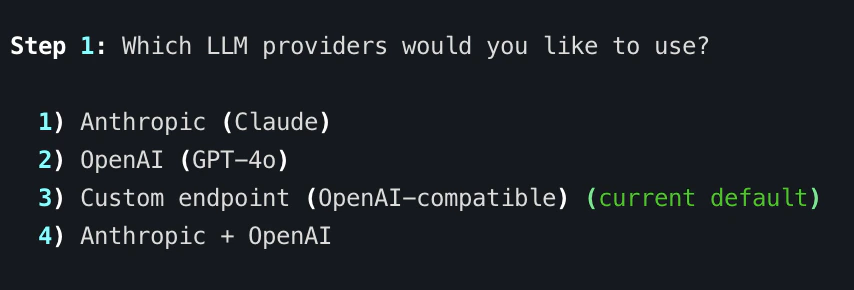
The wizard starts by asking which LLM providers you want to use:
If you have previously run setup, the wizard shows which providers are currently enabled and which is the default.
Step 2: API Key Verification
For standard providers (Anthropic and OpenAI), Kong checks whether the corresponding environment variable is set:ANTHROPIC_API_KEYfor Anthropic (Claude)OPENAI_API_KEYfor OpenAI (GPT-4o)
sk-ant-...abcd). If a key is missing, it shows you exactly where to get one and the export command to set it.
Custom Endpoint Configuration
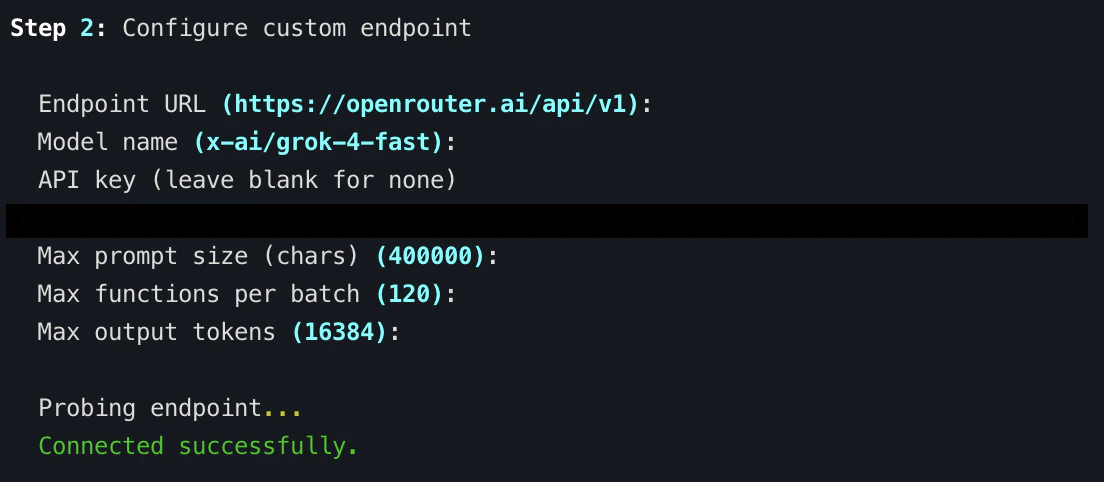
If you choose option 3 (Custom endpoint), the wizard walks you through configuring an OpenAI-compatible endpoint. This works with local inference servers and third-party providers:
After you enter the endpoint details, Kong probes the endpoint to verify connectivity. If the server is not running, it saves your config anyway — you can start the server later.
Default Provider Selection
If you enable multiple providers (option 4 — Anthropic + OpenAI), the wizard asks which one should be the default:kong analyze without a --provider flag. You can always override it per-analysis:
Ghidra Detection
After provider configuration, the wizard checks for a Ghidra installation. Kong auto-detects Ghidra in common locations. If found, it displays the path. If not, it provides installation instructions:GHIDRA_INSTALL_DIR environment variable:
What Gets Saved
The setup wizard saves your configuration to a SQLite database at:KONG_CONFIG_DIR environment variable.
The database stores:
- Enabled providers — which providers are available for analysis
- Default provider — which provider to use when no
--providerflag is given - Custom endpoint config — base URL, model name, API key, and limit overrides (if configured)
- Setup completion flag — so Kong knows the wizard has been run
Re-Running Setup
You can re-runkong setup at any time to change providers, switch defaults, or update custom endpoint settings. The wizard shows your current configuration and lets you reconfigure everything.
Next Steps
- Run your first analysis — Head to the Quickstart
- Configure providers in detail — See LLM Providers and Custom Endpoints
- Explore all environment variables — See Environment Variables
- CLI reference — See
kong setupfor flags and options